
October Update: A Better Mobile Stamp Editor
Explore the latest Stamp Maker updates, including a dedicated editing workspace, easier touch controls, improved mobile dialogs, and a refreshed stamp icon.
Making a stamp on your phone often means moving between a design preview, text settings, and small controls. Our latest Stamp Maker update makes that workflow easier to follow, with a dedicated editor workspace and improvements to touch controls, layer management, and dialogs.
Here is what has changed and how to use it in your next design.
More Room for Your Design
The stamp editor now has its own workspace, giving the canvas and editing controls more of the available screen. Your design stays at the center of the experience, while the Stamp Maker navigation keeps account, language, and theme options within reach.
On a phone, the toolbar separates common actions from the tools used to build your stamp. Upload, undo, redo, and export sit together, while shape and text tools can be reached by scrolling the creation row horizontally.
The canvas also adjusts to the available space when you rotate your phone or use a shorter screen. On desktop, the editor keeps the larger workspace with templates, layers, and properties alongside the canvas.
Four Panels for a Clearer Mobile Workflow
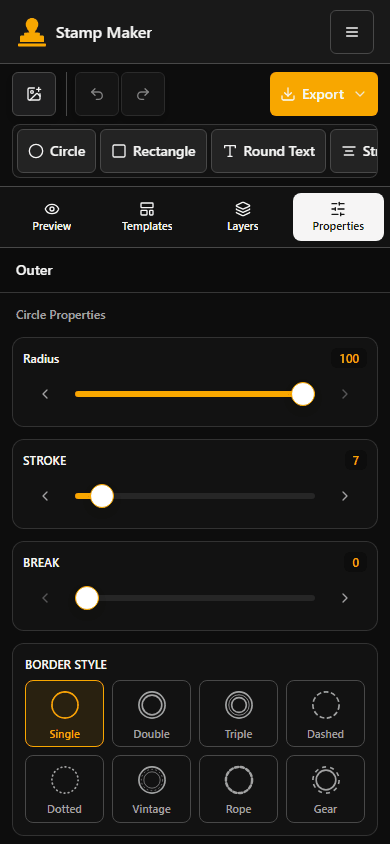
The mobile editor offers four panel buttons: Preview, Templates, Layers, and Properties. Each gives you a focused place to complete part of the design:
- Preview lets you inspect the stamp and reach its download controls.
- Templates helps you choose a starting design.
- Layers lets you select and manage individual parts of the stamp.
- Properties holds settings for the selected element, such as its size, stroke, or border style.
For example, you can select a border in Layers, change its stroke in Properties, then return to Preview to check the result. Switching panels keeps the controls usable without squeezing every setting beside a small canvas.
Easier Touch Controls and More Reliable Layer Locking
Main editing actions and layer controls now have larger touch areas. The color picker supports continuous finger dragging, so you can adjust your stamp color directly on a touchscreen. Numeric color inputs are also easier to use on a phone.
Layer locking is more consistent: a locked layer cannot be dragged or deleted until you unlock it. This is useful when you want to keep an outer border in place while adjusting a company name or center symbol.
If you make a change you want to reverse, use Undo. Exporting an SVG preserves the undo and redo history, so you can download a version, return to your design, and continue editing.
Dialogs That Work Better on Smaller Screens
The export, size, save, and My Templates dialogs now use a consistent layout with internal scrolling. On shorter screens, you can scroll through the options and reach the actions at the end of a dialog.
Close buttons are easier to tap, and keyboard users can close dialogs with Escape when no save is in progress. When a dialog closes, focus returns to the control that opened it. Save-name inputs and longer template names have also received layout improvements.
Mobile navigation now accommodates longer translated labels, right-to-left layouts, and screen safe areas. These changes help keep navigation and editing actions accessible across the existing language options.
A Refreshed Stamp Maker Icon
You may also notice a new stamp silhouette in the site logo, browser icon, and mobile home-screen icon. It retains Stamp Maker's familiar orange color and gives the brand a simpler, recognizable shape at small sizes.
Try the Updated Editor
Open the Stamp Maker editor, choose a template or start a new design, and try the four mobile panels. Select a layer, adjust its properties, check the preview, and export when you are ready.
If you are creating your first stamp, our digital stamp guide walks through the basics. To prepare a stamp for placing over a document or photo, see how to make a stamp transparent.
More posts
How to Create a Digital Stamp
A comprehensive guide on how to design, customize, and save your very own digital stamp or company seal.


How to Make a Stamp Transparent
A complete guide on removing the background of a digital stamp to make it transparent.

How to Extract a Stamp from an Image
Learn how to isolate an official stamp or seal from any scanned document or photo.
Newsletter
Stay in the loop
Subscribe for stamp design tips, workflow guides, and Stamp Maker product updates.